
How it works
How Untimer works
Untimer gives you one timer, and it is an hourglass. A session is twenty five minutes and a set is four sessions. You start a session by winding up the hourglass, and a break follows each one. This page walks through a session and the four screens around it.
Starting a session
Press and hold the hourglass to wind it up, then let go.
Press the hourglass and hold it. A spring engages after a moment and winds for two and a half seconds, clicking as it goes. At the stop you feel a catch. Let go and the session starts.
If you let go early, the hourglass unwinds and settles back to rest.
Every session runs twenty five minutes. On a keyboard, hold Enter or Space and release at the stop. If you use switch access, voice control or a screen reader, a separate labelled action after the hourglass winds it up for you.
Winding gives the session weight. A button is free, so it carries no weight, and holding the hourglass for two and a half seconds costs you something. By the time you let go you have already decided to begin, which makes you more invested in the session you start and more likely to follow through. It is built on the research into why starting is the hard part.
During a session
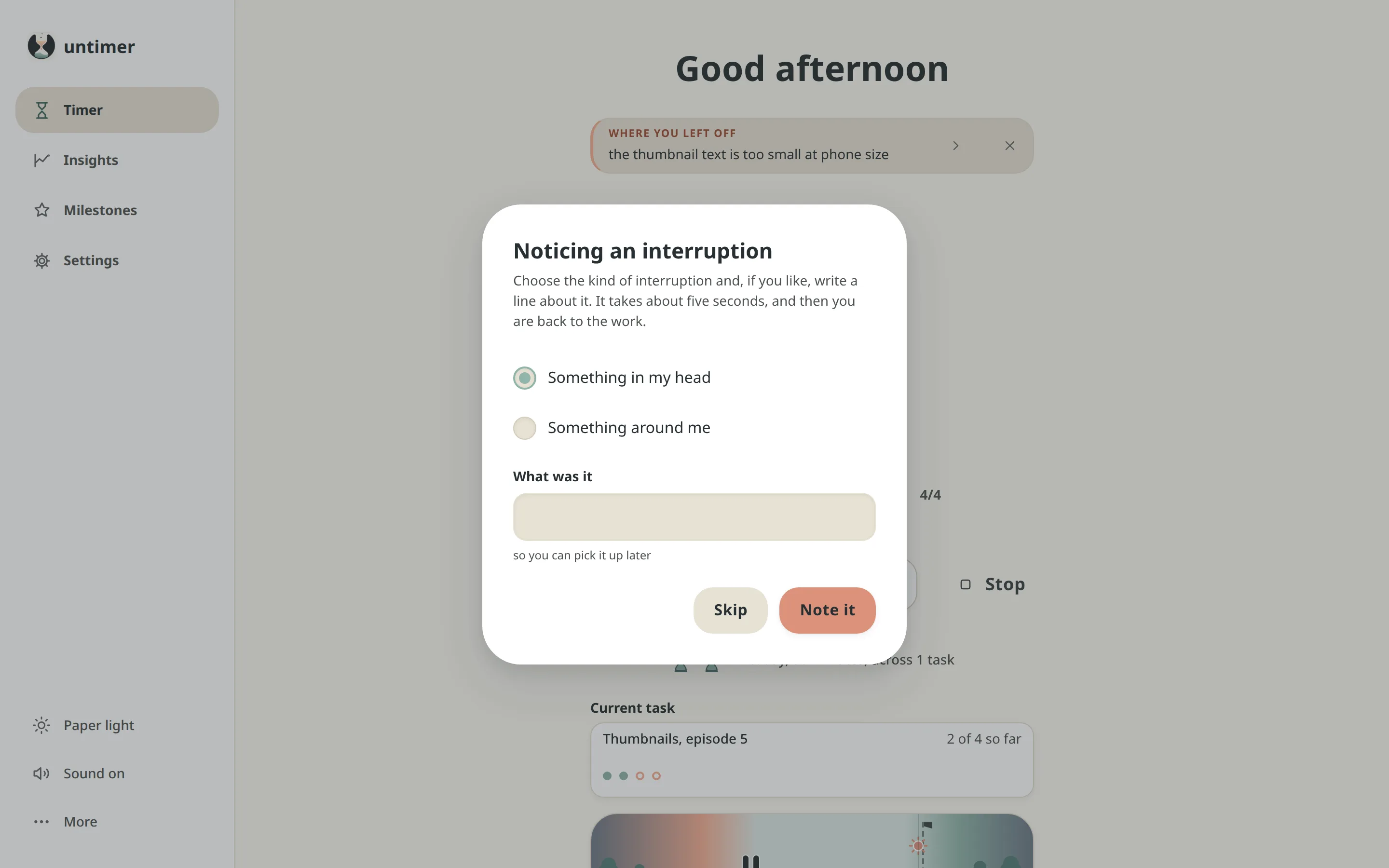
Reset, Interruption and Stop
Reset
Puts the session back to its full length and leaves it running. You keep the same session, the same task and the interruptions you noticed. A session adds to the day when it runs its full length.
Interruption
Tap it when something pulls you away. Choose Something in my head or Something around me, and write one line about what it was if you want to. The message box shows the line when you return. How the note works
Stop
Ends the session, and the hourglass goes back to rest. The message box stays quiet, because a session you stopped adds no time to the day. The session is saved and is in your export. What a stopped session does
The tab title shows the minutes left, and so does the navigation when you are on another screen. When the sand runs out a bell sounds, also when the tab is in the background. Beside the time, a small figure such as 2/4 says which session of the set this is.
Tasks
Name a task and guess how many sessions it will take.
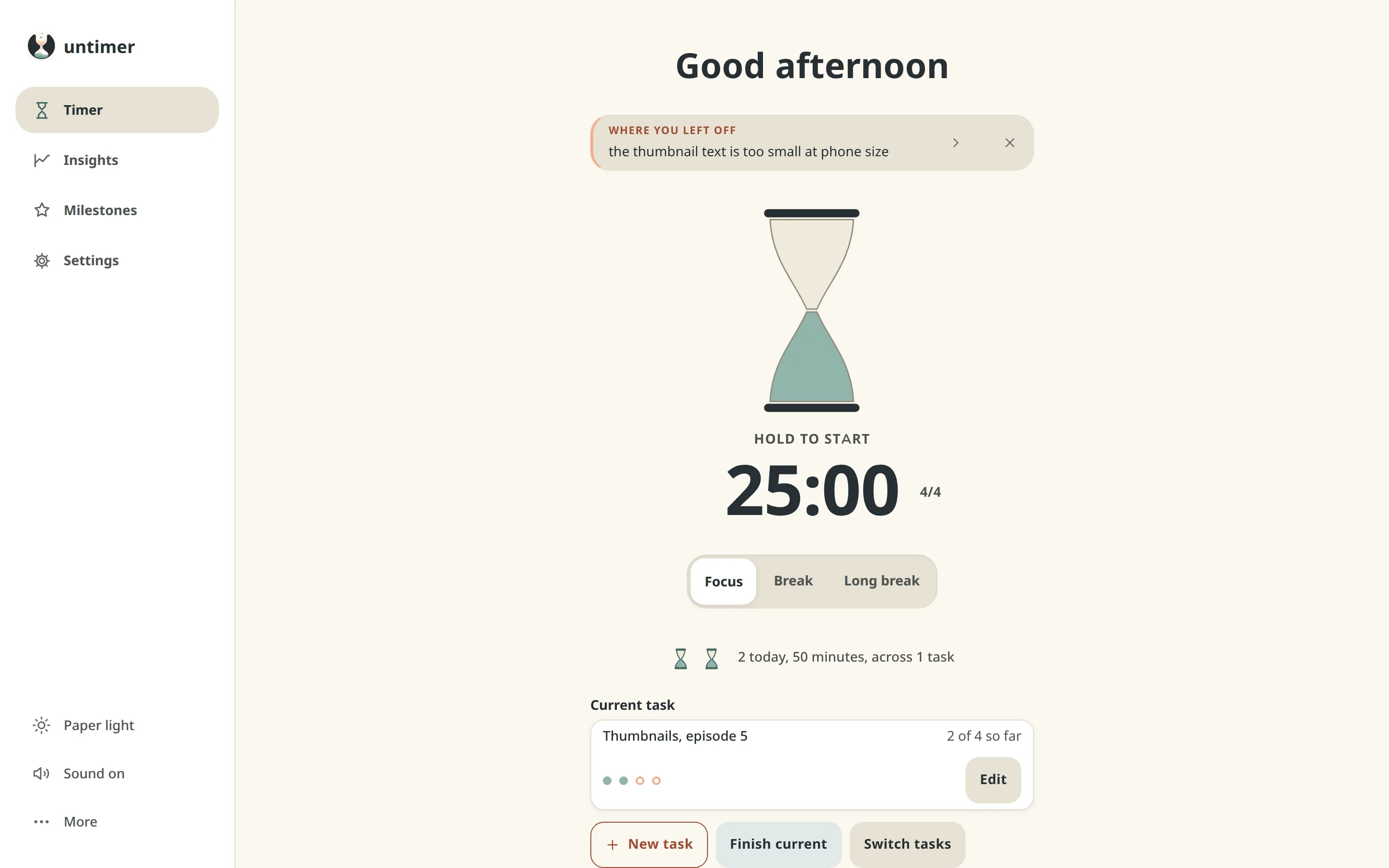
Under the day's count sits the task you are on, drawn as a card. It shows the name and, in dots, what has gone into it against what you said it would take. You can start a session without a task, and the empty card says so.
New task asks for a name and how many sessions you think it will take, and it needs both. Finish current keeps the task on today's list, marked finished, until the day is over. Switch tasks opens the whole list, and the three tasks you used most recently sit under the buttons.
From the next day, a finished task appears in Sessions by task in Insights, which is part of Plus. It lists what you finished against what you said. Sessions past your guess are drawn as extra dots after a thin line, as a plain fact about the work.
Ending a session
A break follows a session, and the message box says what happened.
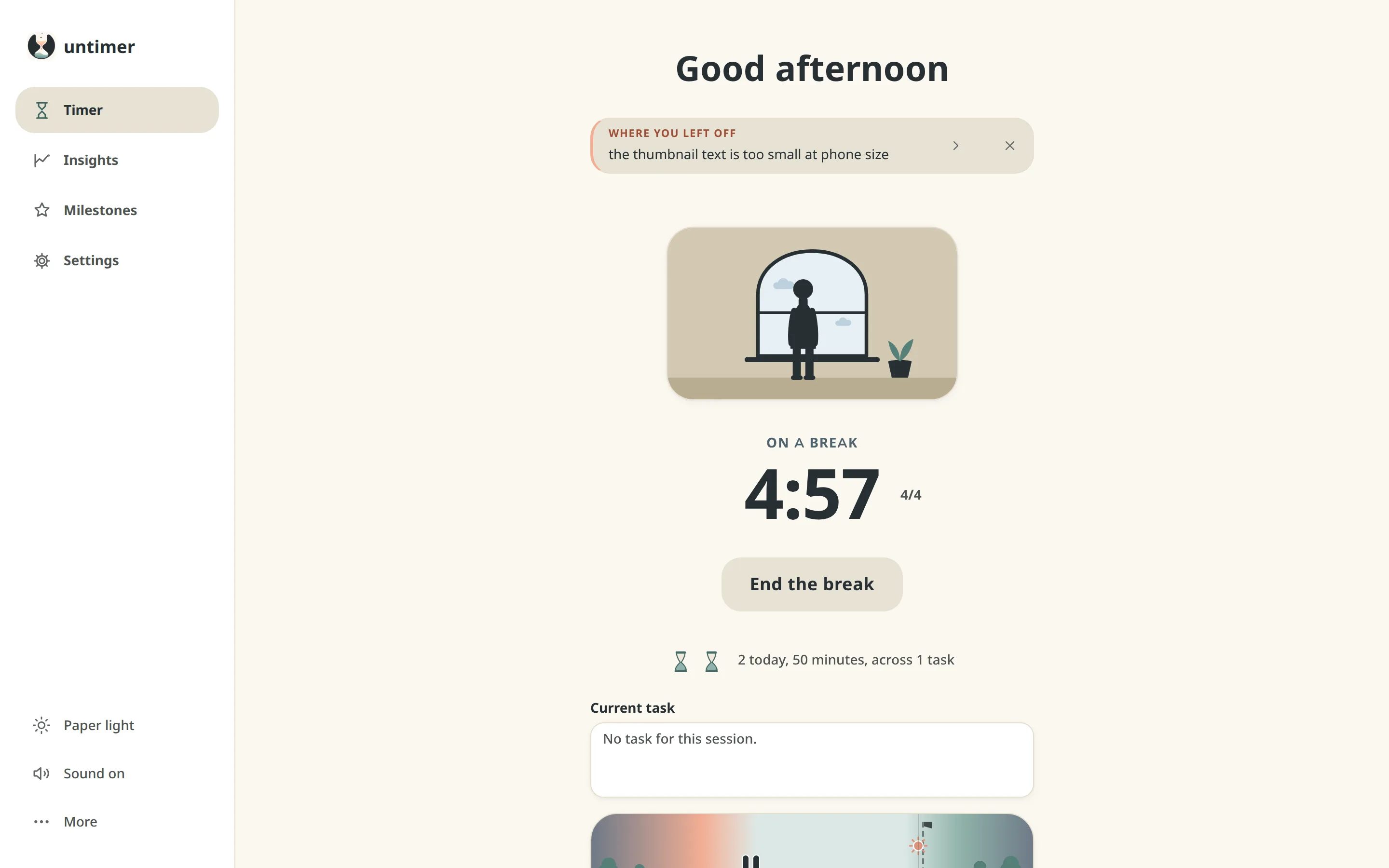
When a session runs its full length, the Timer screen stays the same. A break scene takes the hourglass's place, the selector moves to Break, and the message box says what happened and names any milestone you reached.
A break starts when you press Start the break. Press Focus instead to go straight back to the hourglass. Both wait for you.
If you stop a session, the hourglass returns to rest instead of offering a break, because the work was short. The message box keeps the line it was holding. The session is saved and is in your export, and the day counts sessions that ran their full length.
After four sessions you get a long break. The figure beside the time, 4/4 by then, shows where you are in the set. Press it to open a dialog called The set, which explains the figure. Under Which session is this? you can choose the right number, or you can choose Start the set again to go back to 1/4.
The message box shows one item at a time. What just happened comes first, then where you left off. After those come the first day steps for a new account, tips about the timer and facts about your sessions. The arrow shows the next item, and the cross puts away the items that can be put away.
The message box, one item at a time
The screens
Timer, Insights, Milestones and Settings
Timer
The Timer is one screen in every state. At the top is the message box, and under it the hourglass or a break scene. Then come the time with the set figure beside it, the Focus, Break and Long break selector and today's sessions as one small hourglass each. Under those is the task you are on as a card, with what has gone into it against what you said. Along the bottom, the day strip shows each session at the time it ran.
Insights
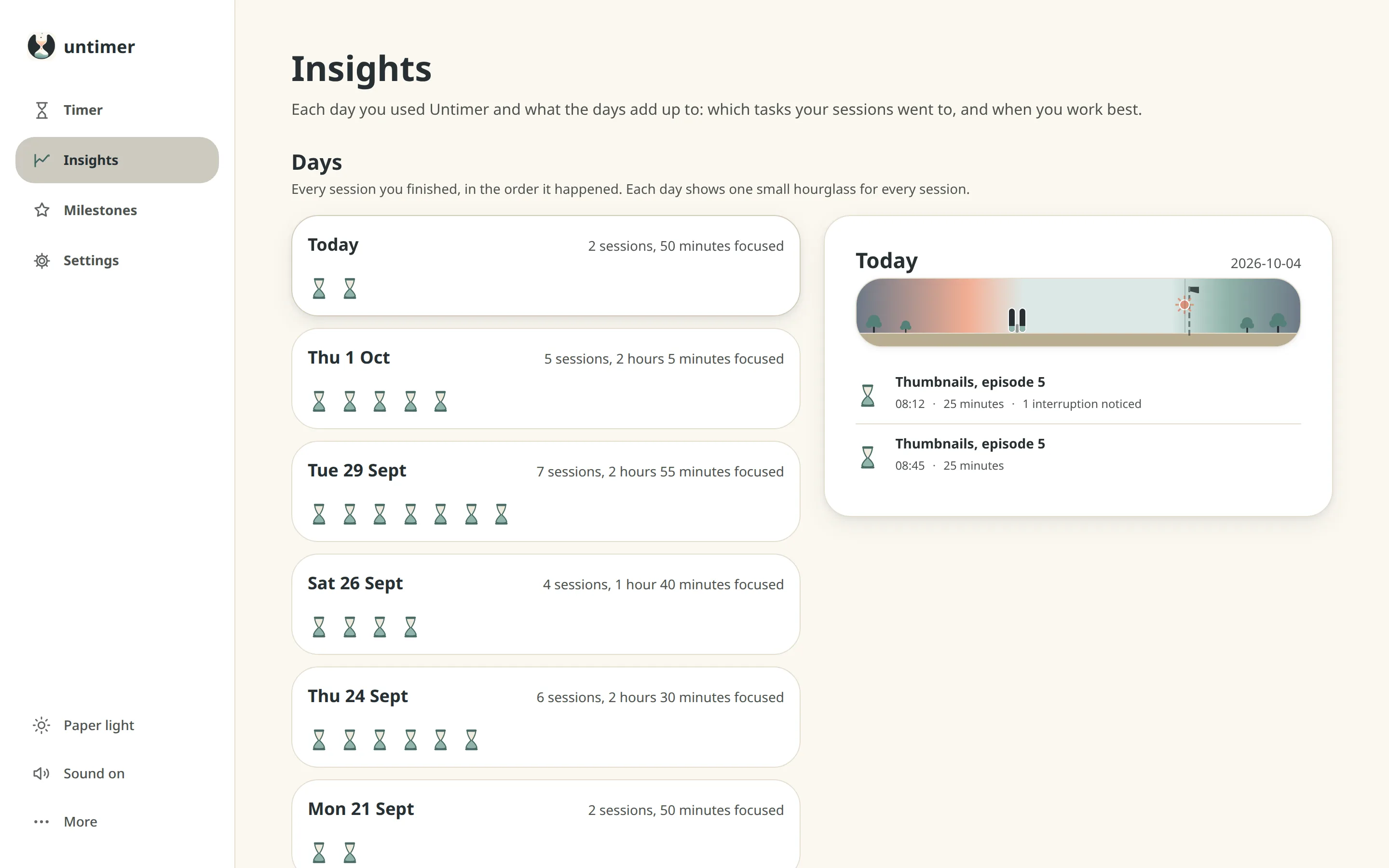
Days comes first, with one small hourglass per session, and Active days sits beside it to show how often you came back. Both are free. Plus adds eight more panels. They show sessions by task, by hour and by weekday. They show your totals and your best day, week and month. They also show when the first and last sessions of a day usually fall, your interruptions and a year at a glance. What each panel shows.
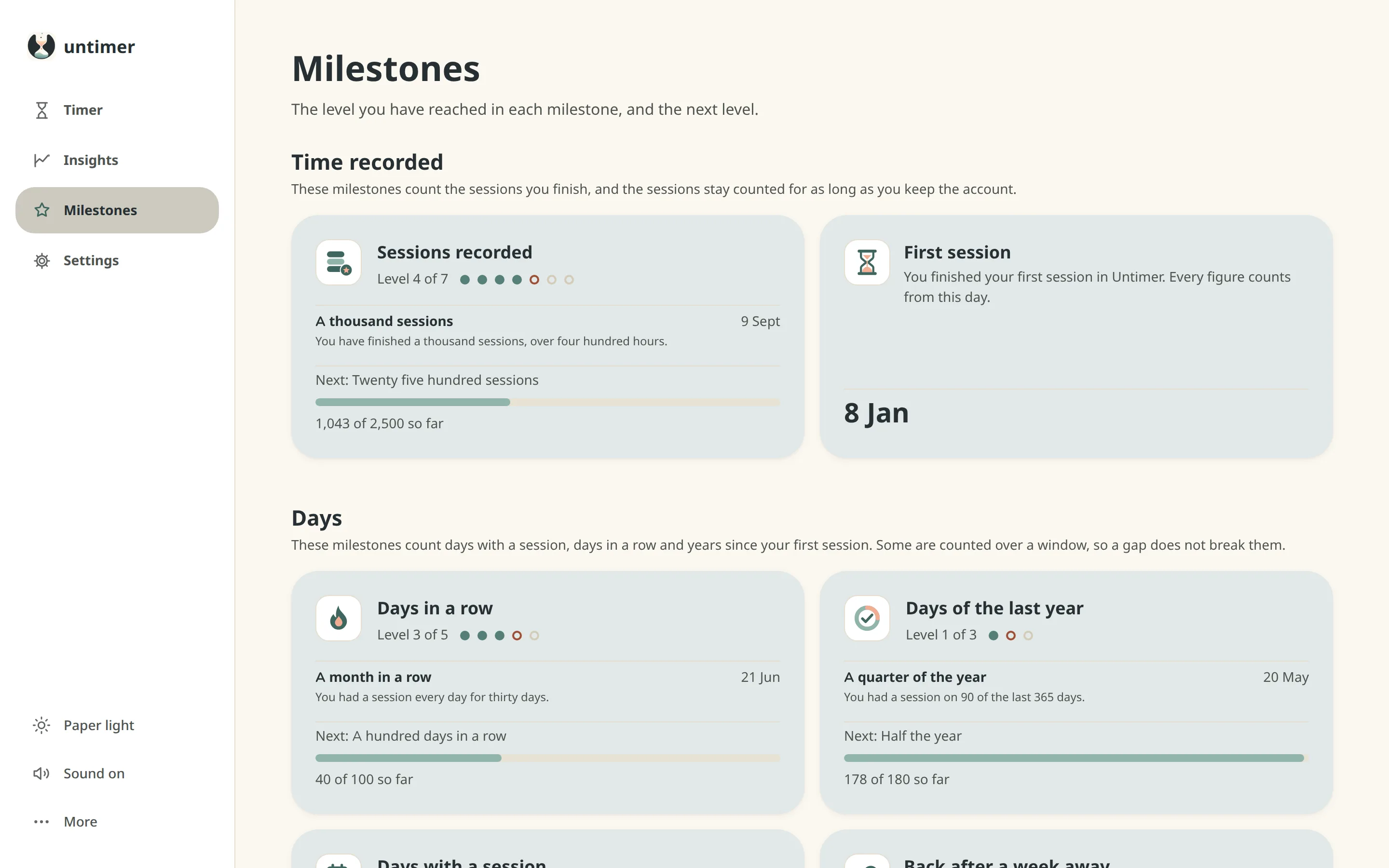
Milestones
Fifty four milestones in four groups: Time recorded, Days, Patterns, and Tasks and breaks. Most of them have levels. Some milestones appear only once you have earned them, and you keep every milestone you reach. Plus also shows the levels still ahead and how far along each one is.
Settings
Settings has the end of your working day, a switch for a system notice at zero for the moment the bell cannot sound, and the status of the connection to your other devices. It also has a button that brings back the first day, and your account, where you can download your data or delete it.
While you work
What Untimer does that a timer usually does not.
- The countdown shows in the tab title.Sand falls through the hourglass, the tab title counts down in minutes, and the navigation shows the time left on every screen. You can work in another window and still see the time left in the tab.
- One line records what pulled you away.You write it when you leave, and the message box shows it when you return, so coming back does not start with working out where you were.
- A session is twenty five minutes and a set is four sessions.Untimer sets the length and the set for you, so you can start without planning a schedule first.
- Active days counts the days with a session.It covers the last forty five days, and the days do not need to be in a row, so you can walk back in after a bad week and pick up where you were. A day you missed is drawn like any other day, and your longest run of days is shown beside it.
Lengths and choices
The lengths of a session, and what you can choose
A session is twenty five minutes and a break is five minutes. A long break is twenty five minutes and a set is four sessions. None of the lengths can be changed.
| Lengths | What it means |
|---|---|
| A session is 25 minutes | Every session is the same length, so you can start straight away, and a count of sessions means something. Why twenty five minutes |
| A set is 4 sessions | A long break follows the fourth session. You can correct where you are in the set. |
| A break is 5 minutes, a long break 25 | End the break stops either one when you have had enough, and your sessions stay as they were. |
| The hourglass | Peach shows the time left, and sage shows the time used. At rest, the sand is in the lower chamber. |
| Winding it up | You hold the hourglass for two and a half seconds, which turns it over, and letting go starts the session. |
| Choices | Options |
|---|---|
| The end of your working day | Off until you turn it on, and then any time you choose. |
| Theme | Paper light, or a warm dark |
| Sound | On, or muted, from the navigation rail |
| A notice at zero | Off until you allow it. Shown where the bell could not sound. |
Register for free.
Untimer gives you a timer and a record of what you did, and it works beside the tools you already use for your projects and your calendar. Registering takes an email address and a password, and the timer and your sessions are free.
Register for freePlus is $1.99 a month or $19 a year for the rest of Insights and Milestones.